
Flux 3: Better Images, Clearer Ideas

Generate visual concepts and production-ready images by describing what you want — subject, mood, color, and composition — then refine with references and settings.

6 0/10

Flux 3

More control over the image you have in mind

Flux 3 turns visual direction into rendered detail: choose the model, shape the composition, and keep every version in one place.

01

Detail

Sharper micro-contrast, cleaner edges, and textures that hold up at full resolution.

02

Clarity

Prompts are followed literally — composition, color, lighting, and typography land where you put them.

03

Continuity

Faces, products, and palettes stay consistent across edits, scenes, and whole campaigns.

Introduce Flux 3

A sharper brief-to-image result

Flux 3 is an image generation and editing model built for iterative visual work. Give it a clear brief, a few references, and the settings that matter — it returns images you can actually use.

Flux 3 image generation studio preview
01

Brief-ready prompts

Describe the outcome instead of tweaking parameters — Flux 3 parses scene, style, and intent from natural language.

02

Conversational edits

Change one thing at a time: swap a background, restyle a product shot, or extend a scene while the rest stays put.

03

Multi-reference input

Supply subject, style, and layout references — Flux 3 fuses them into one coherent image.

04

Pixel-level control

Steer composition, lens feel, lighting, and palette with plain instructions and precise settings.

05

Clean text rendering

Headlines, packaging copy, and infographics render legibly in multiple languages.

06

Up to 4K output

Draft fast at 1K, then render finals at 2K or 4K for print-ready resolution.

Flux 3 workflow

Keep what matters. Change what moves the story.

Flux 3 treats every image as a version you can refine — not a render you have to accept.
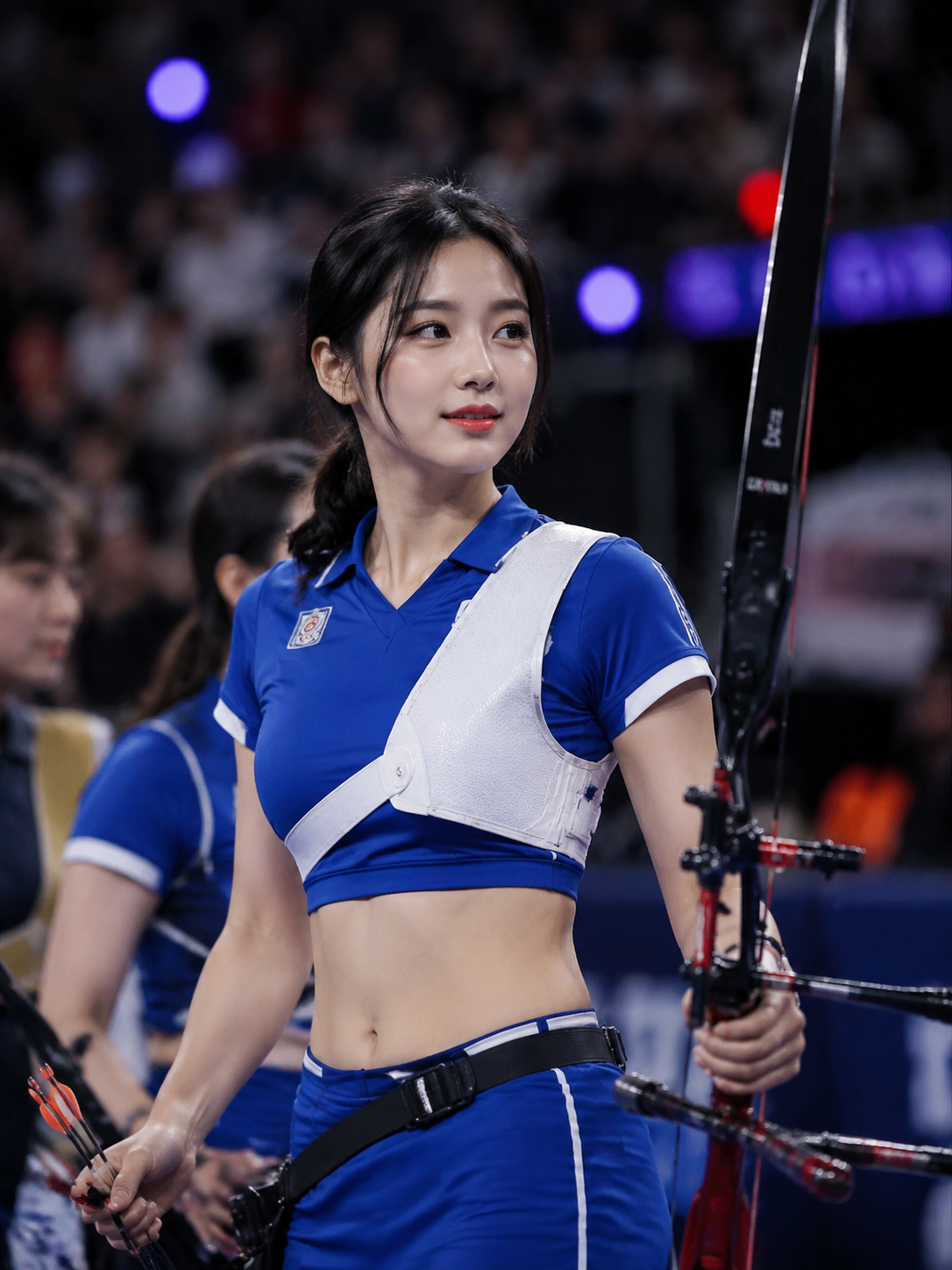
Composing an image brief in Flux 3

Compose

Describe the visual you want

Write the subject, setting, light, and mood. Add a reference image when a product, face, or style has to stay recognizable.

Directing composition settings in Flux 3

Direct

Steer the composition

Pick aspect ratio, resolution, and output format. Name the focal point, the palette, and where the text should sit.
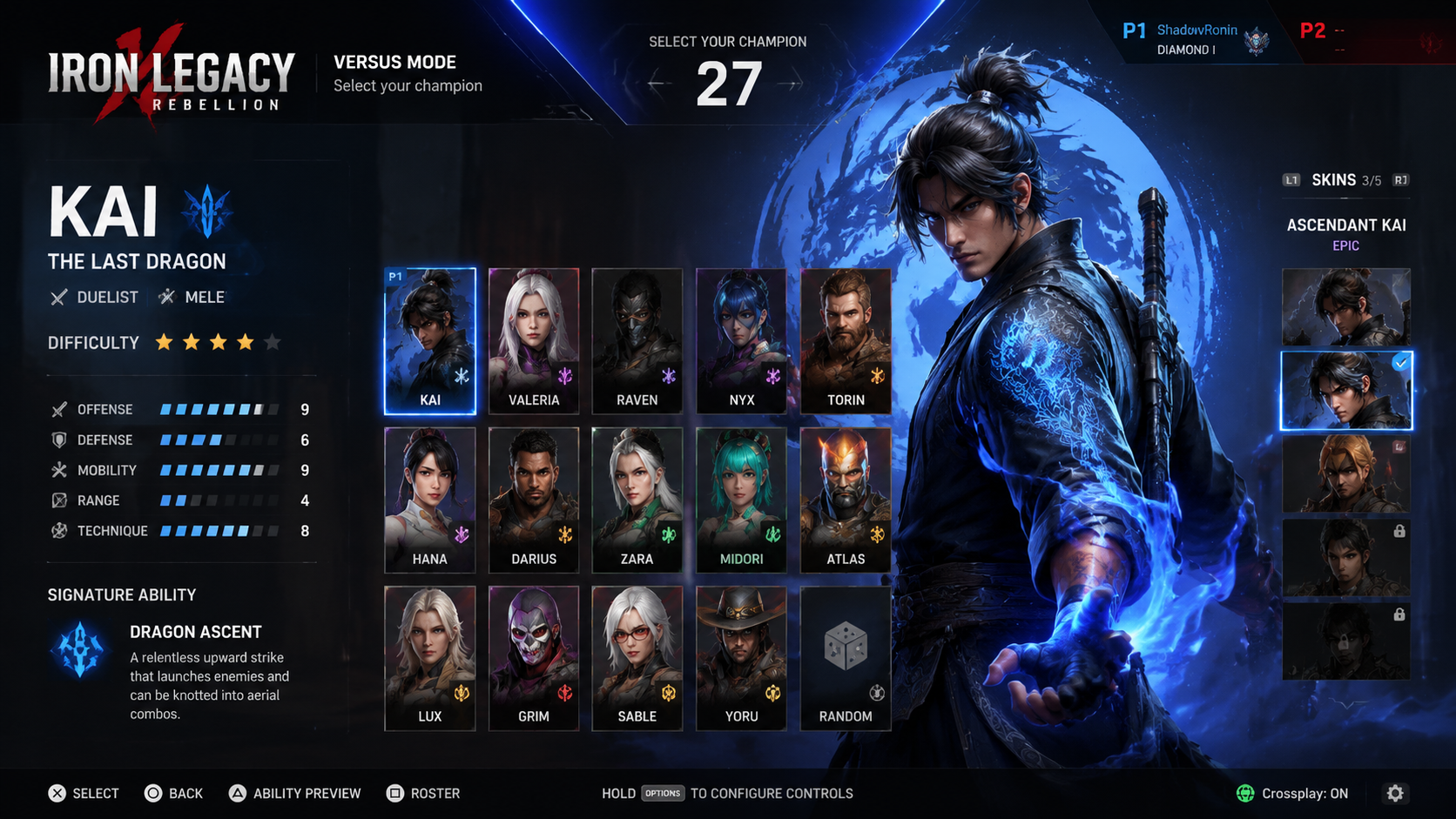
Refining a generated image in Flux 3

Refine

Edit what needs editing

Ask for a new background, a different camera feel, or cleaner type — Flux 3 revises the image without resetting it.

Build a clear creative brief

A practical way to start with Flux 3

Make the important choices explicit, review the output against your brief, and use your preferred result as the basis for another iteration.

01

State the purpose

Describe what the image should communicate and where it will appear. A product listing, a poster, and a social cover need different framing and visual priorities.

02

Assign each reference a role

Explain which image defines the product or character, which supplies the style, and what must stay recognizable. For an edit, separate the change from the details to preserve.

03

Choose framing and detail

Select the size and aspect-ratio settings for your output. Add the focal point, lighting, exact headline, and any space the design needs for other content.

04

Review, refine, and save

Check product details, faces, spelling, and factual labels. Refine a specific part of the composition, then download the version that best fits your project.

From a creative brief to a useful visual

Where Flux 3 can help

Choose a task with a clear visual objective. Flux 3 gives creators, designers, educators, and product teams more ways to explore it.

01

E-commerce imagery

Develop product listing concepts, detail views, and seasonal scenes from a product reference. Keep recognizable features explicit while exploring background and composition.

02

Campaign and social design

Prepare poster concepts, content covers, and promotional graphics around a short message. Guide the colors, visual hierarchy, and space for a headline.

03

Educational infographics

Turn supplied notes into a labeled diagram or illustrated explanation. Give Flux 3 the facts and relationships to show, then review labels before sharing.

04

Localized graphics

Explore translated headlines and culturally relevant settings for a design. Provide approved wording for each audience and check the final spelling and layout.

05

Storyboards and character studies

Develop recurring subjects across scenes, outfits, and expressions. Use references and a consistent brief to guide visual continuity.

06

Photo and style exploration

Try a new setting, palette, outfit, or illustration treatment for an existing image. Explain which subject details Flux 3 should retain through the change.

Useful answers before you create

Flux 3 FAQ

Understand the model, prepare better references, and choose a practical approach to your next image.

01What is Flux 3?
Flux 3 is an AI image generation and editing model in the Flux family developed by Black Forest Labs. It improves on Flux 2 with stronger visual quality, prompt adherence, subject consistency, and text rendering. Its uses include original images, photo edits, product concepts, posters, and illustrated explanations.
02What is different from Flux 2?
Flux 3 improves visual fidelity, realism, multi-turn consistency, multi-reference edits, and text or infographic layouts. Detail at wide formats also improves. A useful way to apply these changes is to define a precise brief and compare the result against the details you care about.
03Is Flux 3 designed for quick iteration?
Yes. Flux 3 keeps a speed-oriented workflow while raising image quality and editing control. Develop a few clear visual directions, review them, and refine the most useful one. Generation time varies with the task and settings.
04Can Flux 3 work with several reference images?
The model supports multiple references and image fusion. Assign a clear role to each reference — the product, person, pose, or style — and specify how the elements should appear together.
05How should I describe an image edit?
Identify the change first, then the details to retain: replace the background with an ivory studio wall, keep the bottle shape and label, and match the existing light direction. Clear preserve-and-change instructions help Flux 3 follow a focused editing brief.
06Can Flux 3 create posters with text?
Yes. The model supports in-image text with improved typography and infographic layouts. Supply the exact wording, language, hierarchy, and position. Short, deliberate copy is easier to review — check spelling and small text before publishing.
07Does Flux 3 support high-resolution images?
Flux 3 supports 1K, 2K, and 4K output, with improved visual quality across these resolutions including wide panoramic formats. Choose the settings offered in your workflow and frame the image for its final use.
08How can I keep a character or product recognizable?
Use a clear reference and name the defining features: face, hair, clothing, silhouette, materials, or product markings. Reuse the same reference and creative direction across scenes, and inspect each result for details that drift.
09What should I check before using an image?
Review faces, hands, product details, spelling, translations, and factual information in diagrams. Flux 3 improves a creative workflow, but a final review remains part of preparing a visual for a real audience.
10How do I begin on Flux 3?
Open Create, enter an image brief, and add references if needed. You can prepare your prompt before signing in — sign in to generate and save your work. Review the model, settings, and credit charge before submitting, and compare plans on the pricing page.

Congrats! You've unlocked special pricing

UP TO 50% OFF

Ends in

Flux 3 AI Pricing

Match your plan to how often you create: recurring credits for a regular workflow, or a one-time pack for a defined visual project.

Cancel anytime

For any questions about payment or plans, contact our support team: Contact support

Pay safely and securely with

UnionPayStripeMore >>

Review billing, shared credits, cancellation, and validity before choosing a Flux 3 AI plan.

Understand the plan before you pay

Understand the model, prepare better references, and choose a practical approach to your next image.

01What is the difference between a subscription and a credit pack?
Subscriptions are designed for ongoing creation and include a recurring credit allowance. Credit packs are one-time purchases with no recurring charge, making them a flexible choice for occasional projects.
02How does annual billing work?
Annual plans show their equivalent monthly price for easier comparison, while the full annual amount is charged once per year. Your yearly credit allowance is available for the annual plan period.
03How do credits work across available models?
Credits are shared across the models currently enabled in the workspace. Cost varies by model and generation settings, including image resolution and reference inputs; review the exact credit charge before submitting a task.
04Can I cancel my subscription at any time?
Yes. You can cancel a subscription at any time from your billing settings. Canceling stops future renewals; your current plan remains available until the end of its paid billing period.
05How long are one-time credit pack credits valid?
Credits purchased through a one-time credit pack are valid for 365 days from the purchase date.
06Can I use generated content for commercial projects?
Yes. Paid plans and credit packs support personal and commercial projects, subject to the applicable terms of service and your rights to any uploaded source material.
07How many generations can run at once?
Free accounts can run 1 batch at a time. Valid credit packs and Starter allow 2, Pro allows 4, and Premium allows 8. Waiting and generating batches both count, across image and video models.

Pay safely and securely with

UnionPayStripeMore >>

Make the next idea visible

Start your next visual on Flux 3

Bring a product reference, a character, or a clear headline. Explore a composition, refine the details, and save a version that fits your project.